API Calls
Overview
In this tutorial, we will use Motion Canvas to learn the fundamentals of making REST API calls to fetch JSON data. This tutorial focuses on understanding how to retrieve and process data from a RESTful API, setting the groundwork for creating dynamic and data-driven animations later on. We’ll start by making a simple API call, parsing the JSON response, and displaying the retrieved data in a structured format. Mastering this essential step will prepare you to incorporate real-time data into your animations in future projects. Let’s get started!
Tutorial Video
Prerequisites
- Node.js installed
- Version
v20.17.0was used during this tutorial - A guide on Node.js is coming in the future
- Version
- Your favorite IDE
- VS Code was used in this tutorial
- Knowledge on REST APIs
- REST stands for Representational State Transfer
- A good guide (before one is present at Tomko Tech) can be found here
Useful Links
Tutorial
-
Create a new Motion Canvas Project using the following command and inputs when prompted
npm init @motion-canvas@latest- Project name:
api - Project path:
api - Languages:
TypeScript (Recommended) - How would you like to render your animation?
Image Sequence&Video (FFmpeg)
- Project name:
-
Now let's move into the new directory, install the dependencies, and start the web viewer
cd apinpm installnpm start- In the video, the command
code .is a shortcut from VS Code.
- In the video, the command
-
Rename the project
- In
./src/project.tsrenameexampleto beapiimport {makeProject} from '@motion-canvas/core';
import api from './scenes/api?scene';
export default makeProject({
scenes: [api],
}); - Rename the file
./src/scenes/example.tsxto./src/scenes/api.tsx
- In
-
Change the background
- In the UI Viewer, under
Video Settings, change the background to bewhite(drag the color selector to the top left conner) and the alpha layer to1 - The UI Viewer should show
rgb(255,255,255)
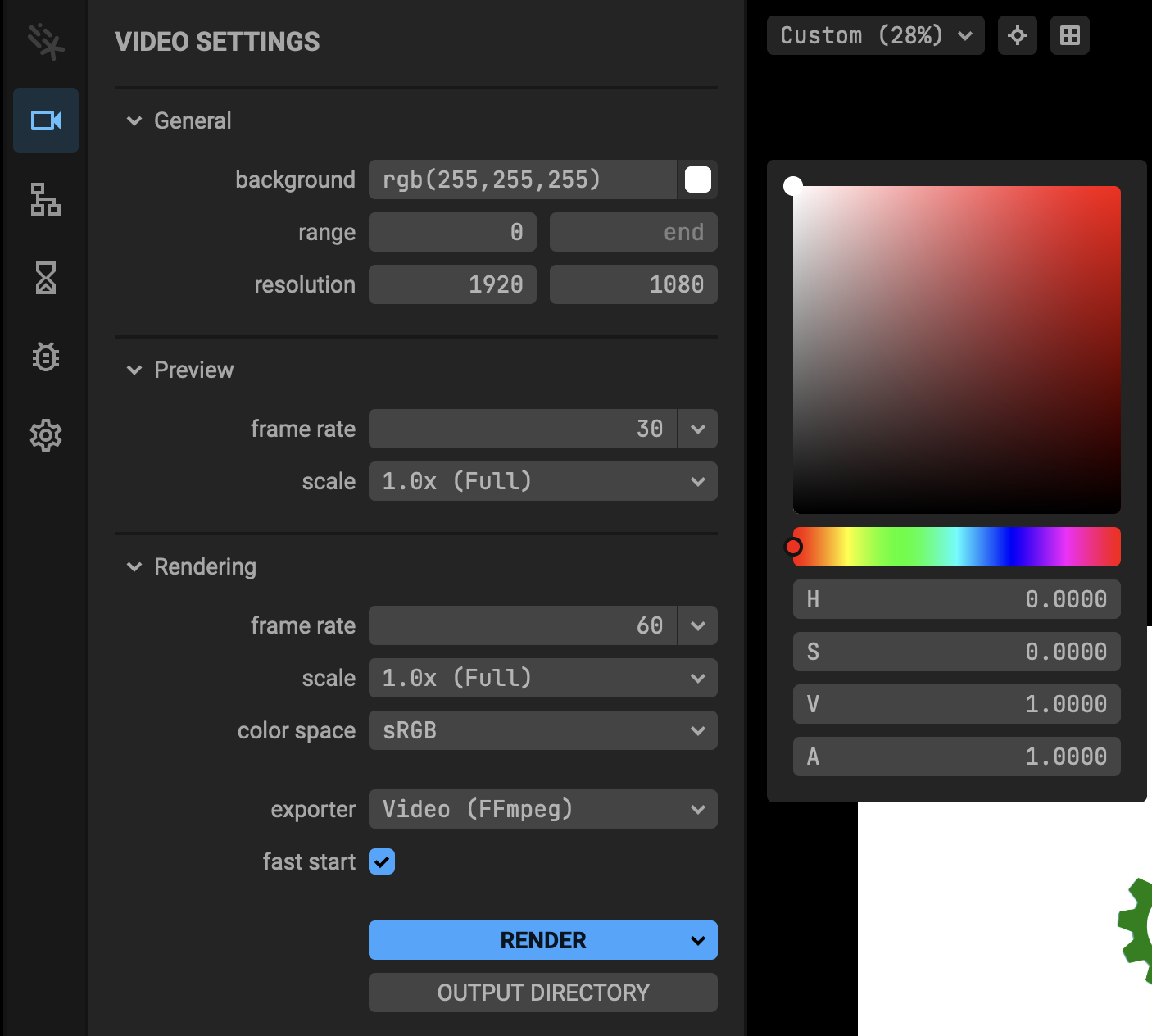
- In the UI Viewer, under
-
Install
axios- Axios is a very common module use to make HTTP(s) requests that we will be using in this tutorial.
- To install Axios, you can stop the running process for the UI by hitting
Ctrl+Cin the terminal and then typenpm i axiosornpm install axios.
- To install Axios, you can stop the running process for the UI by hitting
- Fetch is a built-in module as of
Node 18that we will also take a look at.
NoteIn the future, if you want to use Fetch instead of Axios you do not have to install Axios.
- Axios is a very common module use to make HTTP(s) requests that we will be using in this tutorial.
The rest of this tutorial will happen in our ./src/scenes/api.tsx file.
-
Create a
CodeBlock-
Update the 1st line to be
import {Code, makeScene2D} from '@motion-canvas/2d';as this will remove the default settings and let us use theCodeBlock in our animation. -
Remove the 2nd line for
@motion-canvas/coreas we will not need to make a reference at this time. -
Update the body of
makeScene2Dto just contain a template for our code.view.add(<Code
fontSize={15}
code={"Hello World"}
fill={"black"}
/>);- This will let us make sure everything is working first.
NoteIt is a good practice to test your code often and in small steps while writing.
-
-
Creating an API Call
NoteThe video goes into the process of figuring the below logic out including some troubleshooting. These steps are not replicated here to help avoid confusion.
- Axios
- In the line the our imports from
@motion-canvas/2dplease add the following to import Axiosimport axios from 'axios';. - Above the code in
Step 6 part 3please add the following logic inside ofmakeScene2D:
const response = yield axios.get('https://jsonplaceholder.typicode.com/posts')
const data = response.data; - In the line the our imports from
- Fetch
- Above the code in
Step 6 part 3please add the following logic inside ofmakeScene2D:
const response = yield fetch('https://jsonplaceholder.typicode.com/posts');
const data = yield response.json(); - Above the code in
- Axios
-
Update the
CodeBlock- Update the
codesection of theCodeBlock to beJSON.stringify(data[0], null, 2)instead of"Hello World".
- Update the
-
End Results
- Axios
import {Code, makeScene2D} from '@motion-canvas/2d';
import axios from 'axios';

export default makeScene2D(function* (view) {
  const response = yield axios.get('https://jsonplaceholder.typicode.com/posts')
  const data = response.data;

  view.add(<Code
    fontSize={15}
    code={JSON.stringify(data[0], null, 2)}
    fill={"black"}
  />);
});- Fetch
import {Code, makeScene2D} from '@motion-canvas/2d';

export default makeScene2D(function* (view) {
  const response = yield fetch('https://jsonplaceholder.typicode.com/posts');
  const data = yield response.json();

  view.add(<Code
    fontSize={15}
    code={JSON.stringify(data[0], null, 2)}
    fill={"black"}
  />);
});
You have now created a working Rest API call with Motion Canvas. In the next project, we will expand upon these concepts.