Gears
Overview
In this tutorial, we will use Motion Canvas to explore how to craft shapes, manipulate elements, control movement, and create seamless animations step by step. We’ll recreate a dynamic video originally designed by a friend during a summer internship, featuring rotating and moving gears with embedded content. As the gears shift, additional elements will appear, fade away, and interact with arrows and text, before the animation loops back to the starting frames. Let's get started!
Videos
Original video
Output
Tutorial
Prerequisites
- Node.js installed
- Version
v20.17.0was used during this tutorial - A guide on Node.js is coming in the future
- Version
- Your favorite IDE
- VS Code was used in this tutorial
Useful Links
Tutorial
- Create a new Motion Canvas Project using the following command and inputs when prompted
npm init @motion-canvas@latest- Project name:
gears - Project path:
gears - Languages:
TypeScript (Recommended) - How would you like to render your animation?
Image Sequence&Video (FFmpeg)
- Project name:
- Now let's move into the new directory, install the dependencies, and start the web viewer
cd gearsnpm installnpm start- In the video, the command
code .is a shortcut from VS Code.
- In the video, the command
- Rename the project
- In
./src/project.tsrenameexampleto begearsimport {makeProject} from '@motion-canvas/core';
import gears from './scenes/gears?scene';
export default makeProject({
scenes: [gears],
}); - Rename the file
./src/scenes/example.tsxto./src/scenes/gears.tsx
- In
- Change the background
- In the UI Viewer, under
Video Settings, change the background to bewhite(drag the color selector to the top left conner) and the alpha layer to1 - The UI Viewer should show
rgb(255,255,255)
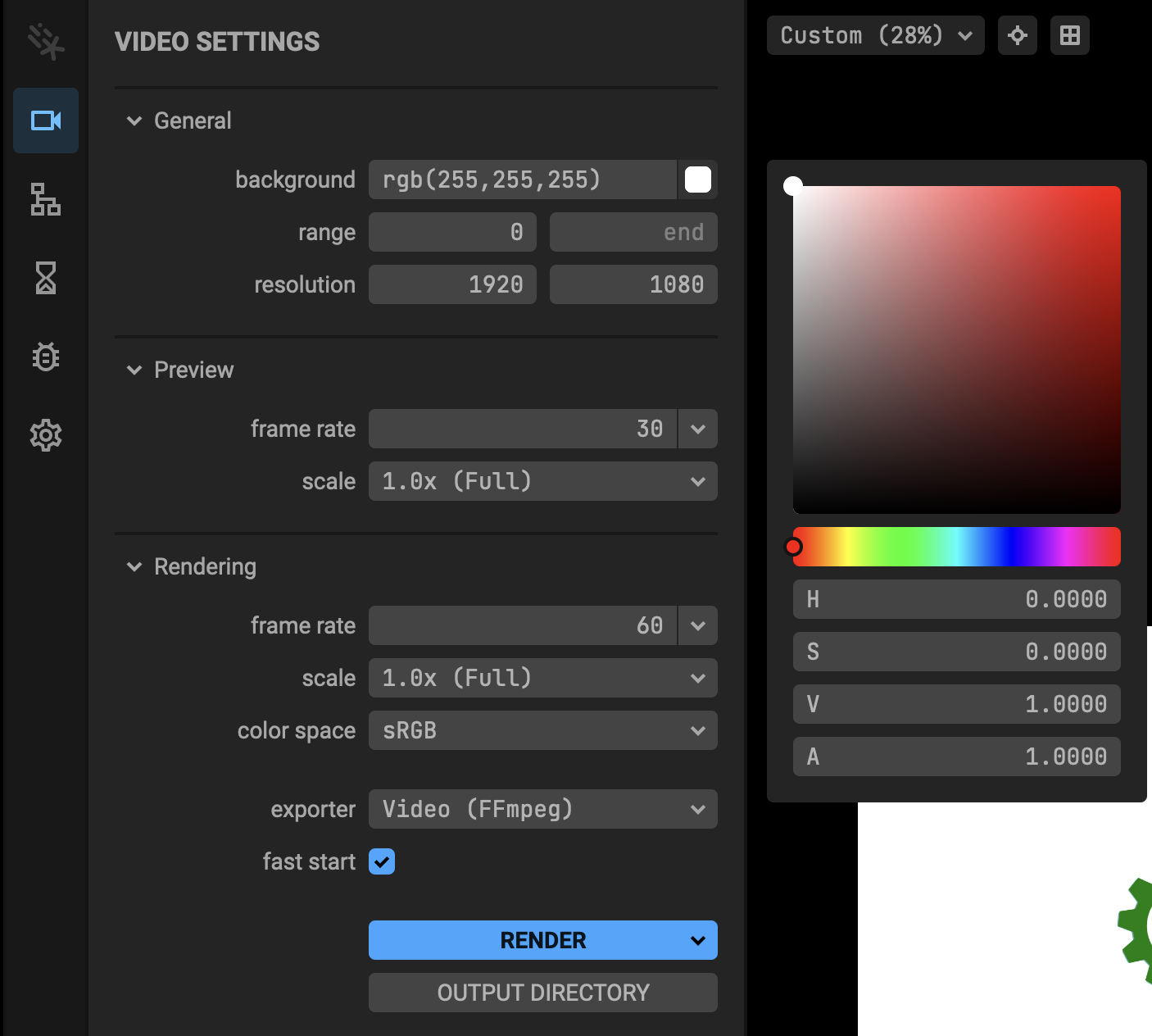
- In the UI Viewer, under
- To make our life easier and more organized, we will be making a
componentsdirectory for our files located at./src/components. The components are used to create the different objects so we can create the same type of object multiple times.- In this directory, make four new files:
./src/components/index.tsx./src/components/GearTemplate.tsx./src/components/PersonTemplate.tsx./src/components/ArrowTemplate.tsx./src/components/index.tsx
// Importing the templates from their respective paths
import GearTemplate from '../components/GearTemplate'; // Template for creating a gear-like structure
import PersonTemplate from '../components/PersonTemplate'; // Template for rendering a simplistic person figure
import ArrowTemplate from '../components/ArrowTemplate'; // Template for creating an arrow with associated text

// Exporting the imported templates for use in other parts of the application
export {
    GearTemplate,     // Makes the GearTemplate available for import elsewhere
    PersonTemplate,   // Makes the PersonTemplate available for import elsewhere
    ArrowTemplate     // Makes the ArrowTemplate available for import elsewhere
};./src/components/GearTemplate.tsx- The GearTemplate allows us to create a template for all of the gears in the animation.
import {Circle, Node, View2D, Spline} from '@motion-canvas/2d';
import {Reference, range, PossibleVector2, SignalValue} from '@motion-canvas/core';

// Defines a gear template function, which renders a gear-like structure along with a customizable body.
export default function* GearTemplate ({
    view,           // The 2D rendering view where the gear will be added.
    gearRef,        // A reference to the gear node, allowing programmatic control later.
    bodyRef,        // A reference to the body node, allowing programmatic control later.
    position,       // The position of the gear in the 2D view.
    scale,          // Scale factor for the gear and body.
    gearColor,      // The fill color for the gear's outer parts.
    body            // The body Node, representing additional custom content within the gear.
}:
{
    view: View2D,
    gearRef: Reference<Node>,
    bodyRef: Reference<Node>,
    position: SignalValue<PossibleVector2>,
    scale: number,
    gearColor: string,
    body: Node
}) {
    // Adds the gear and body nodes to the view.
    view.add(
        <>
            {/* Gear Node */}
            <Node ref={gearRef} position={position} scale={scale}>
                {/* Outer Circle of the Gear */}
                <Circle
                    size={305}          // Diameter of the outer circle.
                    fill={gearColor}    // Fill color for the gear.
                />
                {/* Inner Circle of the Gear */}
                <Circle
                    size={225}          // Diameter of the inner circle.
                    fill={'white'}      // Inner circle filled with white.
                />
                {/* Gear Teeth */}
                {range(11).map((i) => ( // Generate 11 teeth evenly distributed around the gear.
                    <Spline
                        lineWidth={4}      // Thickness of the teeth outline.
                        smoothness={0}     // No curve smoothing for sharp teeth edges.
                        points={[          // Coordinates defining the tooth shape.
                            [-79, -130],   // Bottom left of the tooth.
                            [-82, -176],   // Top left of the tooth.
                            [-41, -190],   // Top right of the tooth.
                            [-15, -150],   // Bottom right of the tooth.
                        ]}
                        fill={gearColor}   // Fill color matching the gear's color.
                        closed             // Closes the spline to form a solid shape.
                        rotation={i * (360 / 11)} // Rotates each tooth evenly around the gear.
                    />
                ))}
            </Node>

            {/* Body Node */}
            <Node ref={bodyRef} position={position} scale={scale}>
                {
                    body // Inserts custom content (body) inside the gear.
                }
            </Node>
        </>
    );
}./src/components/PersonTemplate.tsx- The PersonTemplate allows us to create a template for the two people in the animation.
import {Circle, Node, View2D, Spline} from '@motion-canvas/2d';
import {Reference, PossibleVector2, SignalValue} from '@motion-canvas/core';

// This function defines a person template, rendering a simplistic figure
// using a circle for the head and a spline for the body.
export default function* PersonTemplate ({
    view,           // The 2D rendering view where the person will be added.
    personRef,      // A reference to the person node, allowing programmatic control later.
    position        // The position of the person in the 2D view.
}:
{
    view: View2D,
    personRef: Reference<Node>,
    position: SignalValue<PossibleVector2>
}) {
    // Add the person node to the view.
    view.add(
        <Node
            ref={personRef}             // Reference for programmatic control of the person node.
            position={position}         // Sets the position of the person in the 2D view.
            scale={0}                   // Starts with scale 0, useful for animations (e.g., growing into view).
        >
            {/* Head of the person represented as a circle */}
            <Circle
                size={113}              // Diameter of the head.
                position={[0, -56]}     // Position the head above the body (offset by -56 in the y-axis).
                fill="black"            // Fill color for the head.
            />

            {/* Body of the person represented as a spline */}
            <Spline
                smoothness={0.2}        // Adds slight rounding to the corners for a smoother body shape.
                points={[               // Coordinates defining the shape of the body.
                    [60, 15],           // Right shoulder.
                    [93, 60],           // Right side.
                    [90, 110],          // Right leg.
                    [-90, 110],         // Left leg.
                    [-93, 60],          // Left side.
                    [-60, 15],          // Left shoulder.
                ]}
                fill="black"            // Fill color for the body.
                closed                  // Ensures the spline is a closed shape.
            />
        </Node>
    );
}./src/components/ArrowTemplate.tsx- The ArrowTemplate allows us to create a template for the arrows with words in the animation.
import {Node, View2D, QuadBezier, Txt} from '@motion-canvas/2d';
import {Reference, PossibleVector2, SignalValue} from '@motion-canvas/core';

// This function defines the arrow template structure.
export default function* ArrowTemplate ({
    view,                // The 2D view where this arrow template will be rendered.
    scale,               // A signal value determining the scaling of the arrow and text.
    arrowGroupRef,       // A reference to the group node containing the arrow and text.
    arrowRef,            // A reference to the arrow (QuadBezier curve).
    wordRef,             // A reference to the text object (words).
    arrowPosition,       // Array containing positions for the arrow's start, control, and end points.
    words,               // The text content to display near the arrow.
    wordPosition         // The position of the text in the 2D space.
}:
{
    view: View2D,
    scale: SignalValue<PossibleVector2>,
    arrowGroupRef: Reference<Node>,
    arrowRef: Reference<Node>,
    wordRef: Reference<Txt>,
    arrowPosition: Array<SignalValue<PossibleVector2>>,
    words: string,
    wordPosition: SignalValue<PossibleVector2>
}) {
    // Add a node group to the view.
    view.add(
        <Node
            ref={arrowGroupRef} // Reference to the entire group (arrow + text).
            scale={scale}       // Apply the specified scale to the group.
        >
            {/* Arrow rendering as a quadratic Bezier curve */}
            <QuadBezier
                ref={arrowRef}          // Reference for the arrow node.
                lineWidth={8}           // Set the thickness of the arrow's line.
                stroke={'black'}        // Color of the arrow's stroke.
                p0={arrowPosition[0]}   // Starting point of the Bezier curve.
                p1={arrowPosition[1]}   // Control point that shapes the curve.
                p2={arrowPosition[2]}   // End point of the Bezier curve.
                end={0}                 // Initial rendering progress of the curve (0 = not visible).
                endArrow               // Adds an arrowhead to the end of the curve.
                arrowSize={20}          // Size of the arrowhead.
            />
            {/* Text associated with the arrow */}
            <Txt
                ref={wordRef}                  // Reference for the text node.
                text={words}                   // Content of the text.
                fontWeight={1000}              // Bold font weight for visibility.
                position={wordPosition}        // Position where the text is displayed.
                scale={scale == 1 ? scale : Number(scale) * 3} // Adjust the text size based on the scale.
                opacity={0}                    // Initially invisible (opacity = 0).
            />
        </Node>
    )
}
- In our main file,
./src/scenes/gears.tsx, we are going to add the logic for the scene. This will create and control the different animations for the entire video.
// Importing necessary components from Motion Canvas.
import {makeScene2D, Node, Txt, Circle, Line, Rect, QuadBezier} from '@motion-canvas/2d';
import {createRef, all, delay, linear, easeInSine, easeOutBack, easeInBack} from '@motion-canvas/core';

// Importing the custom templates for reusable animations.
import { GearTemplate, PersonTemplate, ArrowTemplate } from '../components'

export default makeScene2D(function* (view) {
    // References for reusable nodes in the scene.
    const gearTemplateNodeOrange = createRef<Node>();
    const gearTemplateNodeBlue = createRef<Node>();
    const gearTemplateNodeGreen = createRef<Node>();
    const gearTemplateNodePurple = createRef<Node>();

    const gearTemplateNodeOrangeBody = createRef<Node>();
    const gearTemplateNodeBlueBody = createRef<Node>();
    const gearTemplateNodeGreenBody = createRef<Node>();
    const gearTemplateNodePurpleBody = createRef<Node>();

    const personRight = createRef<Node>();
    const personLeft = createRef<Node>();

    const mainArrowLeftGroup = createRef<Node>();
    const mainArrowLeft = createRef<QuadBezier>();
    const mainArrowLeftWords = createRef<Txt>();

    const mainArrowRightGroup = createRef<Node>();
    const mainArrowRight = createRef<QuadBezier>();
    const mainArrowRightWords = createRef<Txt>();

    const subArrowOneGroup = createRef<Node>();
    const subArrowOne = createRef<QuadBezier>();
    const subArrowOneWords = createRef<Txt>();

    const subArrowTwoGroup = createRef<Node>();
    const subArrowTwo = createRef<QuadBezier>();
    const subArrowTwoWords = createRef<Txt>();

    const subArrowThreeGroup = createRef<Node>();
    const subArrowThree = createRef<QuadBezier>();
    const subArrowThreeWords = createRef<Txt>();

    const subArrowFourGroup = createRef<Node>();
    const subArrowFour = createRef<QuadBezier>();
    const subArrowFourWords = createRef<Txt>();

    const subArrowFiveGroup = createRef<Node>();
    const subArrowFive = createRef<QuadBezier>();
    const subArrowFiveWords = createRef<Txt>();

    // Adding gear templates with different configurations.
    yield* GearTemplate({
        view,
        gearRef: gearTemplateNodeOrange,
        bodyRef: gearTemplateNodeOrangeBody,
        position: [260, -270],
        scale: 0.75,
        gearColor: "orange",
        body: <Node>
        <Txt
        text='Kafka'
        fontWeight={1000}
        y={-50}
        />
        <Txt
        text='Metadata'
        fontWeight={1000}
        />
        <Txt
        text='MS'
        fontWeight={1000}
        y={50}
        />
        </Node>
    })
    yield* GearTemplate({
        view,
        gearRef: gearTemplateNodeBlue,
        bodyRef: gearTemplateNodeBlueBody,
        position: [-25, -120],
        scale: 1,
        gearColor: "#4682B4",
        body: <Node>
        <Txt
        text='Kafka'
        fontWeight={1000}
        y={-50}
        />
        <Txt
        text='Events'
        fontWeight={1000}
        />
        <Txt
        text='MS'
        fontWeight={1000}
        y={50}
        />
        </Node>
    })
    yield* GearTemplate({
        view,
        gearRef: gearTemplateNodeGreen,
        bodyRef: gearTemplateNodeGreenBody,
        position: [-255, 103],
        scale: 0.75,
        gearColor: "green",
        body: <Node>
        <Circle
        size={40}
        lineWidth={15}
        position={[-28,0]}
        stroke={"black"}
        />
        <Circle
        size={33}
        lineWidth={10}
        position={[-28,-61]}
        stroke={"black"}
        />
        <Line
        points={[
            [-28, -15],
            [-28, -45]
        ]}
        stroke={'black'}
        lineWidth={10}
        />
        <Circle
        size={33}
        lineWidth={10}
        position={[24,-31]}
        stroke={"black"}
        />
        <Line
        points={[
            [-10, -7],
            [13, -25]
        ]}
        stroke={'black'}
        lineWidth={10}
        />
        <Circle
        size={33}
        lineWidth={10}
        position={[24,30]}
        stroke={"black"}
        />
        <Line
        points={[
            [-15, 10],
            [12, 25]
        ]}
        stroke={'black'}
        lineWidth={10}
        />
        <Circle
        size={33}
        lineWidth={10}
        position={[-28,60]}
        stroke={"black"}
        />
        <Line
        points={[
            [-28, 15],
            [-28, 45]
        ]}
        stroke={'black'}
        lineWidth={10}
        />
        </Node>
    })
    yield* GearTemplate({
        view,
        gearRef: gearTemplateNodePurple,
        bodyRef: gearTemplateNodePurpleBody,
        position: [-40, 272],
        scale: 0.75,
        gearColor: "purple",
        body: <Node>
        <Rect
        size={30}
        stroke={"black"}
        lineWidth={7}
        position={[-50,-50]}
        />
        <Rect
        size={30}
        stroke={"black"}
        lineWidth={7}
        position={[0,-50]}
        />
        <Rect
        size={30}
        stroke={"black"}
        lineWidth={7}
        position={[50,-50]}
        />
        <Rect
        size={30}
        stroke={"black"}
        lineWidth={7}
        position={[-50,0]}
        />
        <Rect
        size={30}
        stroke={"black"}
        lineWidth={7}
        position={[0,0]}
        />
        <Rect
        size={30}
        stroke={"black"}
        lineWidth={7}
        position={[50,0]}
        />
        <Rect
        size={30}
        stroke={"black"}
        lineWidth={7}
        position={[-50,50]}
        />
        <Rect
        size={30}
        stroke={"black"}
        lineWidth={7}
        position={[0,50]}
        />
        <Rect
        size={30}
        stroke={"black"}
        lineWidth={7}
        position={[50,50]}
        />
        </Node>
    })

    // Adding person templates on the left and right of the scene.
    yield* PersonTemplate({
        view,
        personRef: personLeft,
        position: [-672.5, 0]
    })
    yield* PersonTemplate({
        view,
        personRef: personRight,
        position: [672.5, 0]
    })

    // Adding main arrows connecting nodes.
    yield* ArrowTemplate({
        view,
        arrowGroupRef: mainArrowLeftGroup,
        arrowRef: mainArrowLeft,
        wordRef: mainArrowLeftWords,
        arrowPosition: [
            [-650, -155],
            [-485, -360],
            [-260, -180],
        ],
        scale: 1,
        words: "Request",
        wordPosition: [-460, -320]
    })

    yield* ArrowTemplate({
        view,
        arrowGroupRef: mainArrowRightGroup,
        arrowRef: mainArrowRight,
        wordRef: mainArrowRightWords,
        arrowPosition: [
            [150, 70],
            [320, 272],
            [540, 90]
        ],
        scale: 1,
        words: "Response",
        wordPosition: [350,230]
    })

    yield* ArrowTemplate({
        view,
        arrowGroupRef: subArrowOneGroup,
        arrowRef: subArrowOne,
        wordRef: subArrowOneWords,
        arrowPosition: [
            [-780, 110],
            [-760, -150],
            [-475, -130]
        ],
        scale: 0.5,
        words: "list topics,\n consume",
        wordPosition: [-920,-160]
    })

    yield* ArrowTemplate({
        view,
        arrowGroupRef: subArrowTwoGroup,
        arrowRef: subArrowTwo,
        wordRef: subArrowTwoWords,
        arrowPosition: [
            [-220, 180],
            [-240, 445],
            [-515, 435]
        ],
        scale: 0.50,
        words: "produce",
        wordPosition: [-65,320]
    })

    yield* ArrowTemplate({
        view,
        arrowGroupRef: subArrowThreeGroup,
        arrowRef: subArrowThree,
        wordRef: subArrowThreeWords,
        arrowPosition: [
            [-532, 560],
            [-425, 800],
            [-164, 680]
        ],
        scale: 0.50,
        words: "validate\nschema",
        wordPosition: [-410,830]
    })

    yield* ArrowTemplate({
        view,
        arrowGroupRef: subArrowFourGroup,
        arrowRef: subArrowFour,
        wordRef: subArrowFourWords,
        arrowPosition: [
            [380, 435],
            [535, 225],
            [305, 50]
        ],
        scale: 0.50,
        words: " get\nschema",
        wordPosition: [610,250]
    })

    yield* ArrowTemplate({
        view,
        arrowGroupRef: subArrowFiveGroup,
        arrowRef: subArrowFive,
        wordRef: subArrowFiveWords,
        arrowPosition: [
            [750, -420],
            [665, -180],
            [390, -270]
        ],
        scale: 0.50,
        words: "cluster\n info",
        wordPosition: [560,-410]
    })

    // Adding animations to rotate gears, reveal arrows, and manage visibility transitions.
    yield* all(
        // Rotating gears
        gearTemplateNodeOrange().rotation(-360*6,10*6, linear),
        gearTemplateNodeBlue().rotation(360*6,10*6, linear),
        gearTemplateNodeGreen().rotation(-360*6,10*6, linear),
        gearTemplateNodePurple().rotation(360*6,10*6, linear),

        // Transition animations for persons, arrows, and words
        delay(0.5,
            all(
                personRight().scale(1, 1, easeOutBack),
                personLeft().scale(1, 1, easeOutBack),
            )
        ),
        delay(1.5,
            mainArrowLeft().end(1, 1.5)
        ),
        delay(2.25,
            mainArrowRight().end(1, 1.5)
        ),
        delay(4,
            all(
                mainArrowLeftWords().opacity(1, .25),
                mainArrowRightWords().opacity(1, .25),
            )
        ),
        delay(19,
            all(
                personRight().scale(0, 1, easeInBack),
                personLeft().scale(0, 1, easeInBack),
            )
        ),
        delay(19.5,
            all(
                mainArrowLeftGroup().opacity(0, 1),
                mainArrowRightGroup().opacity(0, 1),
            )
        ),
        delay(20,
            all(
                gearTemplateNodeOrange().position([478,-353], 1, easeInSine),
                gearTemplateNodeOrangeBody().position([478,-353], 1, easeInSine),

                gearTemplateNodeGreen().position([-423, 218], 1, easeInSine),
                gearTemplateNodeGreenBody().position([-423, 218], 1, easeInSine),

                gearTemplateNodePurple().position([91, 357], 1, easeInSine),
                gearTemplateNodePurpleBody().position([91, 357], 1, easeInSine),
            )
        ),
        delay(21,
            all(
                subArrowOne().end(1, 2),
                subArrowTwo().end(1, 2),
                subArrowThree().end(1, 2),
                subArrowFour().end(1, 2),
                subArrowFive().end(1, 2),
            )
        ),
        delay(23,
            all(
                subArrowOneWords().opacity(1, .25),
                subArrowTwoWords().opacity(1, .25),
                subArrowThreeWords().opacity(1, .25),
                subArrowFourWords().opacity(1, .25),
                subArrowFiveWords().opacity(1, .25),
            )
        ),
        delay(58,
            all(
                subArrowOneGroup().opacity(0, 1),
                subArrowTwoGroup().opacity(0, 1),
                subArrowThreeGroup().opacity(0, 1),
                subArrowFourGroup().opacity(0, 1),
                subArrowFiveGroup().opacity(0, 1),
            )
        ),
        delay(59,
            all(
                gearTemplateNodeOrange().position([260, -270], 1, linear),
                gearTemplateNodeOrangeBody().position([260, -270], 1, linear),

                gearTemplateNodeGreen().position([-255, 103], 1, linear),
                gearTemplateNodeGreenBody().position([-255, 103], 1, linear),

                gearTemplateNodePurple().position([-40, 272], 1, linear),
                gearTemplateNodePurpleBody().position([-40, 272], 1, linear),
            )
        )
    )
});
Congratulations!!
You have now created a working Motion Canvas animation.
Now, let's make it even better 😀 We can go back and refactor parts of it to be better organized. Below are some ideas on how to make this project better.
- Create separate components for the inside of each of the gears.
- Hint: Remember to import the new components.
- Hint: You can look at the other components as an example or template.
- Group the references into one or more array of references.
- Update the text with the arrows to take an array of strings instead of a single string. You can loop over the array so that every newline is perfectly centered.
- Instead of manually creating the grid of squares in the bottom gear, can you make it using one or two loops?